
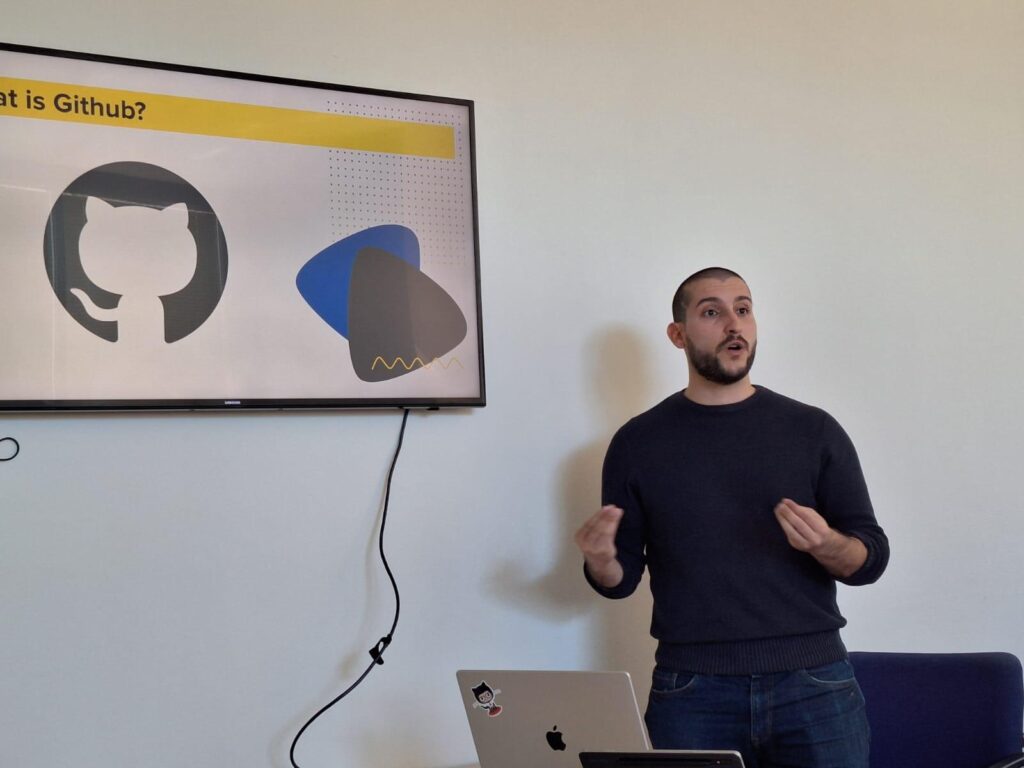
In our workshop, we showed how to create a website in just 20 minutes using GitHub Pages—perfect for beginners! Participants discovered the importance of websites, learned to set up and customize a site, and explored domain acquisition and redirection. This post recaps the session, including types of sites you can build, a step-by-step guide, and helpful visual resources to get you started.

Creating Your First Website with GitHub Pages: A Beginner’s Guide
In today’s digital age, having a personal website is increasingly important for professional exposure, sharing hobbies, or launching an online business. GitHub Pages is an excellent solution for beginners who want to create their first website without extensive coding knowledge or significant financial investment.
Why Choose GitHub Pages?
GitHub Pages stands out among website creation platforms for several reasons. First and foremost, it’s free, offering hosting, a domain, and hundreds of templates.
The platform also offers advantages in terms of setup time and complexity. Unlike traditional web hosting services that require server management and complex configurations, GitHub Pages can be set up in less than 20 minutes. This rapid deployment capability doesn’t compromise on quality or functionality – users still get a reliable and secure professional-looking website.

Step-by-Step Website Creation Process
Setting Up Your GitHub Account
The journey begins with creating a GitHub account. This process is straightforward:
- Visit GitHub.com and click on the sign-up option
- Choose a username (this will be part of your website’s URL)
- Provide your email and create a password
- Complete the verification process
Choosing and Implementing a Them
GitHub Pages uses Jekyll themes – pre-designed templates that make your website look professional without requiring design expertise. The process involves:
- Visiting Jekyll theme repositories (jekyllthemes.io, jekyllthemes.org, or jekyllthemes.dev)
- Selecting a theme that matches your needs
- Forking the theme’s repository to your GitHub account
- Renaming the repository to ‘[username].github.io‘
Customizing Your Website
Once you have your basic structure in place, customization becomes the next priority:
- Edit the _config.yml file to include your personal information
- Modify the content on existing pages
- Add new pages as needed
- Update images and other media elements
- Test your changes using the built-in preview feature
Here’s a YouTube tutorial on the whole process
Domain Selection and Management
While GitHub Pages provides a free domain in the format username.github.io, many users prefer a custom domain for a more professional appearance. Here’s how to approach domain selection:
Choosing a Domain Provider
Popular domain providers include:
Setting Up Your Custom Domain
After purchasing your domain, connecting it to your GitHub Pages site involves:
- Adding your custom domain in the GitHub Pages settings
- Creating appropriate DNS records with your domain provider
- Waiting for DNS propagation (can take up to 48 hours)
- Enabling HTTPS for secure connections
Here’s a YouTube tutorial on how to set up a custom domain.

Enhancing Your Website with Visual Tools
Modern websites require engaging visual elements. Here are a few tools to enhance your GitHub Pages website:
Image Resources
Unsplash: Offers high-quality, free-to-use images for both commercial and non-commercial purposes. No attribution required, though it’s appreciated.
SEO Optimization
SEO for Figma: A plugin that helps optimize your website’s content for search engines, offering features like:
- Keyword research assistance
- Meta description generation
- Common SEO mistake detection
- Content optimization suggestions
Collaboration and Planning
FigJam: An excellent whiteboarding tool for:
- Website planning and brainstorming
- Creating user journey maps
- Developing site structure diagrams
- Collaborative design discussions
Best Practices and Recommendations
To ensure success with your GitHub Pages website:
- Choose the Right Theme: Look for themes with exactly or more functionality than you need;
- Read Documentation Thoroughly: Understanding your theme’s capabilities and limitations helps avoid complications later;
- Optimize for Mobile: Ensure your website looks good on all devices as mobile traffic continues to grow;
- Regular Updates: Keep your content fresh and relevant by updating regularly.
GitHub Pages offers an accessible, cost-effective way to create and maintain a professional website. By following these guidelines and utilizing the suggested tools, even beginners can create impressive websites without coding experience.

Frequently Asked Questions (FAQ)
Q: Do I need to know how to code to use GitHub Pages?
No, you don’t need coding experience to create a basic website with GitHub Pages. Using pre-made themes, you can create and maintain a website by editing text files. However, basic knowledge of Markdown (a simple text formatting syntax) will be helpful.
Q: Is GitHub Pages really completely free?
GitHub Pages hosting is completely free. However, if you want a custom domain name (instead of username.github.io), you’ll need to purchase it separately. Domain costs typically range from $10-15 per year.
Q: How many websites can I create with GitHub Pages?
You can create one user/organization site (username.github.io) and unlimited project sites (username.github.io/project-name). Each GitHub account gets one free user site.
Q: What are the limitations of GitHub Pages?
Key limitations include:
– No authentication supported
– No database support
– No server-side processing (PHP, Python, etc.)
– Diverging from the selected theme required coding knowledge
Q: Can I use my existing domain with GitHub Pages?
Yes, you can use any domain you own with GitHub Pages.
Q: Can I sell products through my GitHub Pages website?
While you can’t process payments directly through GitHub Pages (as it’s static hosting), you can integrate third-party services like PayPal buttons or link to external e-commerce platforms.
Q: How do I track visitors to my website?
While GitHub Pages doesn’t provide built-in analytics, you can integrate free services like Google Analytics or Plausible Analytics by adding their tracking code to your site.
Q: What happens if I make a mistake while updating my site?
GitHub’s version control system allows you to revert to any previous version of your site. Every change is tracked, making it easy to undo mistakes.
Want to know more about our workshops? Don’t miss the next events! Prefer just a networking event? That’s great, too—but make sure to join us as a member to enjoy these benefits and so much more.